<--Notice,Scroll position saving feature was added, so you have to give this program a new permission-->
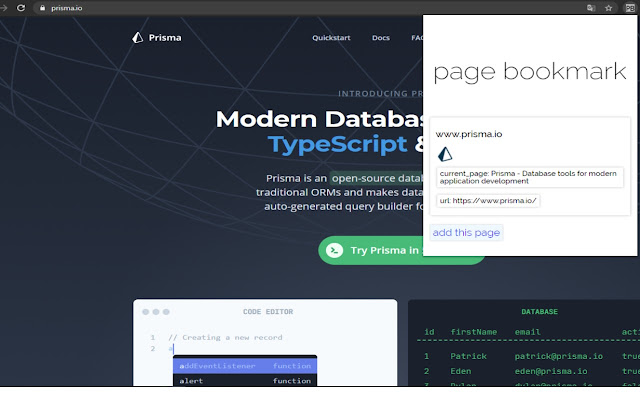
The page bookmark can be useful when reading html pages in order, such as documents or webtoons that you have read. The page to which the document has been read is recorded by pressing the autoUpdate button. If your Chrome bookmarks are too messy, or if you need to register a page as a bookmark and delete the previous page from the bookmarks, try using the page bookmark.
page bookmark는 자신이 읽던 문서나 웹툰 등 순서가 있는 html페이지를 읽을때 유용하게 사용할 수있습니다. 어느 페이지까지 문서를읽었는지 autoUpdate 버튼만 누르면 기록됩니다. 크롬 북마크가 너무 지저분하거나, 페이지를 북마크에 등록하고 이전 페이지를 삭제해야하는 경우 page bookmark를 사용해보세요.
<--한국어 설명은 아래에 있어요~~-->
:::: How To Use ::::
#1 ::: Go to the desired page and click the Add This Page button. At this point, you'll see a preview of the site's domain and how the current page will be saved.
#2 ::: If you want to save the last page you used while using the site, click the AutoUpdate button of the registered site. -At this time, you can register multiple pages of one site separately, so be careful not to autoupdate wrong items on the same site.
#3 ::: When you turn off and restart Chrome, click the "Current" button on the item to return to the last saved page. -Click the "Previous" button to open the page that was saved before one Autoupdate.
#4 ::: If you want, click the delete button to delete the item.
#0 ::: If you try to add another page that is already in the item, a warning window will pop up and ask you to choose whether to register or not.
:::: 사용방법 :::::
#1 ::: 원하는 페이지에 가서 Add This Page 버튼을 누릅니다. 이때 해당 사이트의 도메인과 현재 페이지가 어떻게 저장될지 미리보기가 표시됩니다.
#2 ::: 사이트를 이용하다가 마지막으로 이용한 페이지를 저장해두고 싶을 때 등록해놓았던 사이트의 AutoUpdate버튼을 누릅니다.
- 이때 한 사이트의 여러 페이지를 각각 따로도 등록 할 수있으므로 같은 사이트의 엉뚱한 항목을 AutoUpdate 하지 않도록 주의합니다.
#3 ::: 크롬을 껐다가 다시켰을 때 항목의 "현재" 버튼을 클릭해서 마지막으로 저장해놓았던 페이지로 돌아갑니다.
- "이전" 버튼을 누르면 한 번의 Autoupdate 전에 저장되어있던 페이지를 열 수있습니다.
#4 ::: 원한다면 delete 버튼을 눌러 항목을 삭제합니다.
#0 ::: 만약 이미 항목에 있는 페이지를 또 추가하려한다면 경고창이 뜨면서 등록할지 말지 선택하도록 할 것입니다.
--많이 이용해주세요. 감사합니다.^^
Extore is a team of professionals who are passionate about creating extensions for web browsers. This devotion also gives us opportunity to appreciate work of other people. We get inspired by useful, open source extensions made by developers all over the world. Our strong belief is that one should share helpful add-ons with others. That’s why we’d like to present you our ever-growing list of favourite extensions that have inspired us. Moreover, as you probably have already learned, sometimes struggling for the best brings an end to the good. Talking about add-ons it often turns out that an upgrade is worse then previous version. Also it can become really tricky to get back to the beloved version of your favourite extension. That’s why we’re going to make not only the latest, but all versions of our favourite (and we hope yours too) add-ons available for download. No more compromises, just stick to the version you really like!
 Preparing download link, please wait for seconds
Almost done...
Click to download
Error getting file. Please try again
Preparing download link, please wait for seconds
Almost done...
Click to download
Error getting file. Please try again