Key features
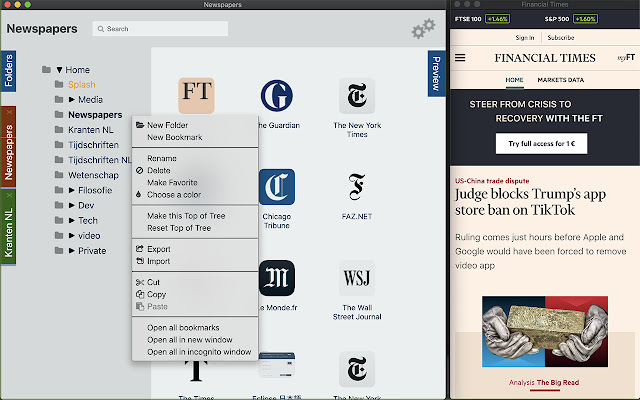
- Put your mouse over any bookmark to see a live preview of its website.
- See only the headlines (RSS-feeds) with a click.
- Organise your bookmarks in folders: copy-paste, drag and drop.
- Make Splash your personal start page to have your most useful websites always at hand.
- Quickly export a selection of your bookmarks to share with a friend.
- Privacy: No ads, no collection of information.
- Highly customisable: Themes, colours, sizes.
- Synchronised: splash uses the bookmarks of chrome, so they are automatically synchronised across devices.
Daily usage:
- You have the bookmarks you check often in folders called Newspapers, Technology, Social, Sports, Entertainment, Work, MyOwnBusiness, etc.
- Click on the name of a folder and move your mouse over each bookmark to see what is new in your world.
Documentation: how it works:
Contents:
1. Previews
2. Icons
3. Export/import
4. Favourite folders
5. Copy/paste
6. Drag/drop
7. Skin
8. Language
9. Compatibility
1. Previews
Put your mouse over any bookmark to see a live preview of its website
Typical / frequent usage:
You organised your bookmarks, e.g. you put the papers websites you examine daily in a folders called Newspapers, Technology, Social, Sports, EntertainmentNews Papers.
Then you need an overview of the contents today. You don't want to open them unless the headlines interest you.
Click on the name of a folder and move your mouse over each bookmark to see what is new in your world.
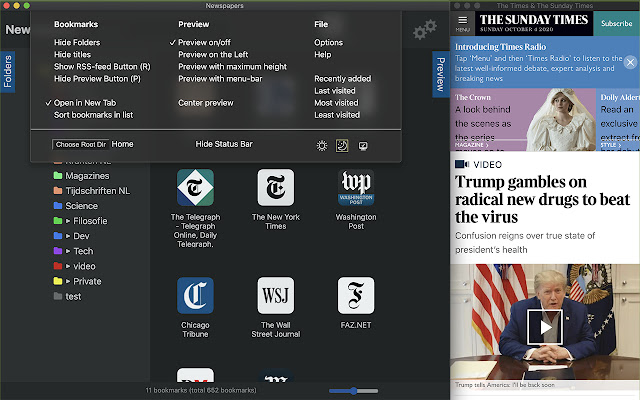
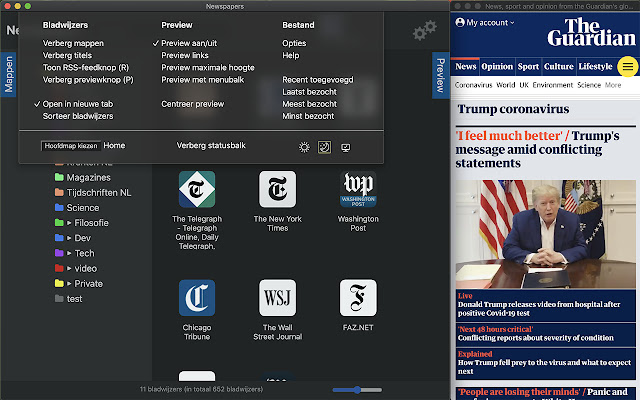
Then Splash gives you the Preview button (vertical tab on the right)! Turn Preview on and it makes Splash present any bookmark you put your mouse over in a small window at the side. It appears on the left of your browser window. You can also set it to appear on the right.
By turning Preview on (vertical tab on the right) makes Splash present any bookmark you put your mouse over in a small, vertical window at the side. It appears on the left of your browser window. You can also set it to appear on the right.
(Splash is intended make better use of 16:9 screen space when it comes to reading. Your browser must not be in full screen mode, in order to accommodate a second window which displays the instant previews of your bookmarks.)
2. Icons
A bookmark is presented as a big icon. You can set this to be smaller.
The big icon is fetched from the website the bookmark is pointing to. Most websites offer a special big icon for mobile devices that's called apple-touch-icon. If this is not found, the smaller favicon is used.
If you would rather have another icon, you can copy another image on the interne, then paste it into the bookmark. Steps:
- right click on any image in your browser
- Copy image
- back in Splash: click the 3 dots on your bookmark
- Paste icon
3. Export/import
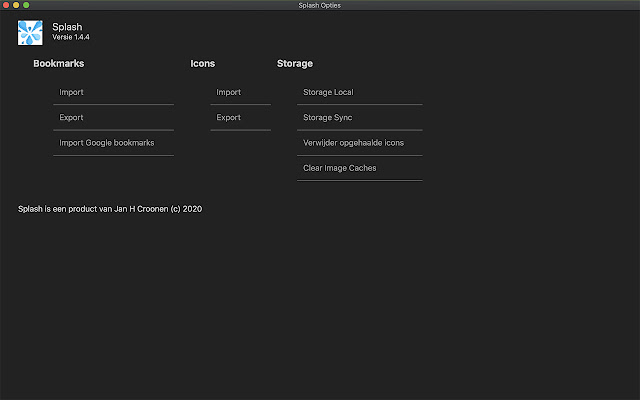
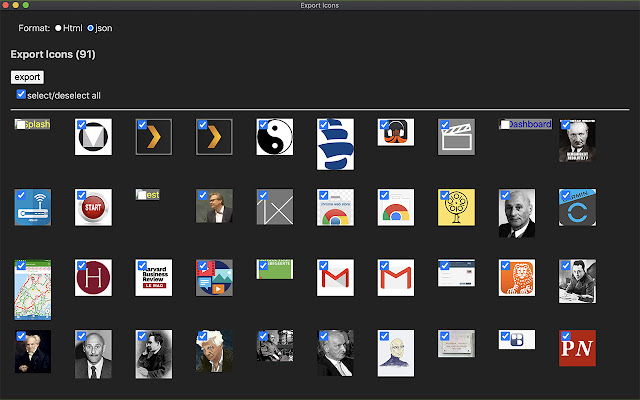
You can export all or part of your bookmarks to a json file. Send the json file to a friend and share your tree of bookmarks or just a branch of it. Or keep it as a backup on your local drive.
You may also export your custom icons.
4. Favourite folders
Have always at hand the folders you use the most. Right click a folder > Favourite. They appear as vertical tabs on the left side of the window. Give them different colours if you like.
5. Copy/paste
Bookmarks and folders can be copied/cut and pasted to other folders.
6. Drag/drop
Bookmarks and folders can be dragged and copy-dragged to other places. You can even drag bookmarks from the bookmark bar into another location in Splash.
7. Skin
Choose an appearance from Dark, Light or System. System follows your operating system settings, this works on MacOS and Windows. It doesn't work on MacOS Big Sur (yet).
8. Language
The language you choose in your browser will be the language Splash uses. Momentarily only Dutch and English are supported. Default is English.
9. Compatibility
Splash has been tested on MacOS, Windows, Linux and Chromebook. Installable in these browsers: Chrome, Microsoft Edge.
Extore is a team of professionals who are passionate about creating extensions for web browsers. This devotion also gives us opportunity to appreciate work of other people. We get inspired by useful, open source extensions made by developers all over the world. Our strong belief is that one should share helpful add-ons with others. That’s why we’d like to present you our ever-growing list of favourite extensions that have inspired us. Moreover, as you probably have already learned, sometimes struggling for the best brings an end to the good. Talking about add-ons it often turns out that an upgrade is worse then previous version. Also it can become really tricky to get back to the beloved version of your favourite extension. That’s why we’re going to make not only the latest, but all versions of our favourite (and we hope yours too) add-ons available for download. No more compromises, just stick to the version you really like!
 Preparing download link, please wait for seconds
Almost done...
Click to download
Error getting file. Please try again
Preparing download link, please wait for seconds
Almost done...
Click to download
Error getting file. Please try again